
Most D2C brands on WhatsApp get the catalog live and stop there. Products are listed, images uploaded, the catalog link is somewhere in the bio. Then a customer asks "Do you have anything for oily skin?" and someone on the team manually types out three product names.
That's the gap WhatsApp collections close. Instead of a flat scroll of 80 products, collections let you slice the catalog into labeled groups customers can navigate on their own. Skincare by concern, apparel by occasion, supplements by goal. The catalog stops being a product dump and starts working like a storefront.
This covers setting up collections from scratch, structuring them so they actually help buyers, and what changes when you're on the API with a proper CRM behind it.
What a collection is
A named grouping inside your catalog. The catalog is the shop, the collection is the aisle.
When a customer opens your catalog from the storefront icon in chat, they see collections as browsable tabs or sections. Without them they land on a flat list. With them they tap "New Arrivals", "Bestsellers" or "Under ₹999" and narrow down immediately.
Collections don't change how individual products are listed - each still needs its own image, name, price and description. They only decide how those products are organised for browsing. One product can live in several collections, so a new serum can sit in "New Arrivals" and "Oily Skin" at the same time, which matters more than people expect once you're running seasonal or promotional groupings alongside permanent categories.
Before you start
Collections assume the catalog is already working. If it isn't, that comes first.
On the WhatsApp Business App you need an active WhatsApp Business account, at least one product in the catalog, and compliance with WhatsApp's commerce policy, which covers what product categories can and can't be listed. On the API you need a verified Business Manager account on Meta, a catalog created and connected in Meta Commerce Manager, and the catalog assigned to your WhatsApp Business API account (Business Settings > Data Sources > Catalogs).
One thing most guides skip: commerce policy eligibility is product-category specific. If you sell anything in a restricted category - financial services, alcohol, certain health products - your catalog or collections might get rejected at review even if the setup goes fine. Check the policy before building out a full structure.
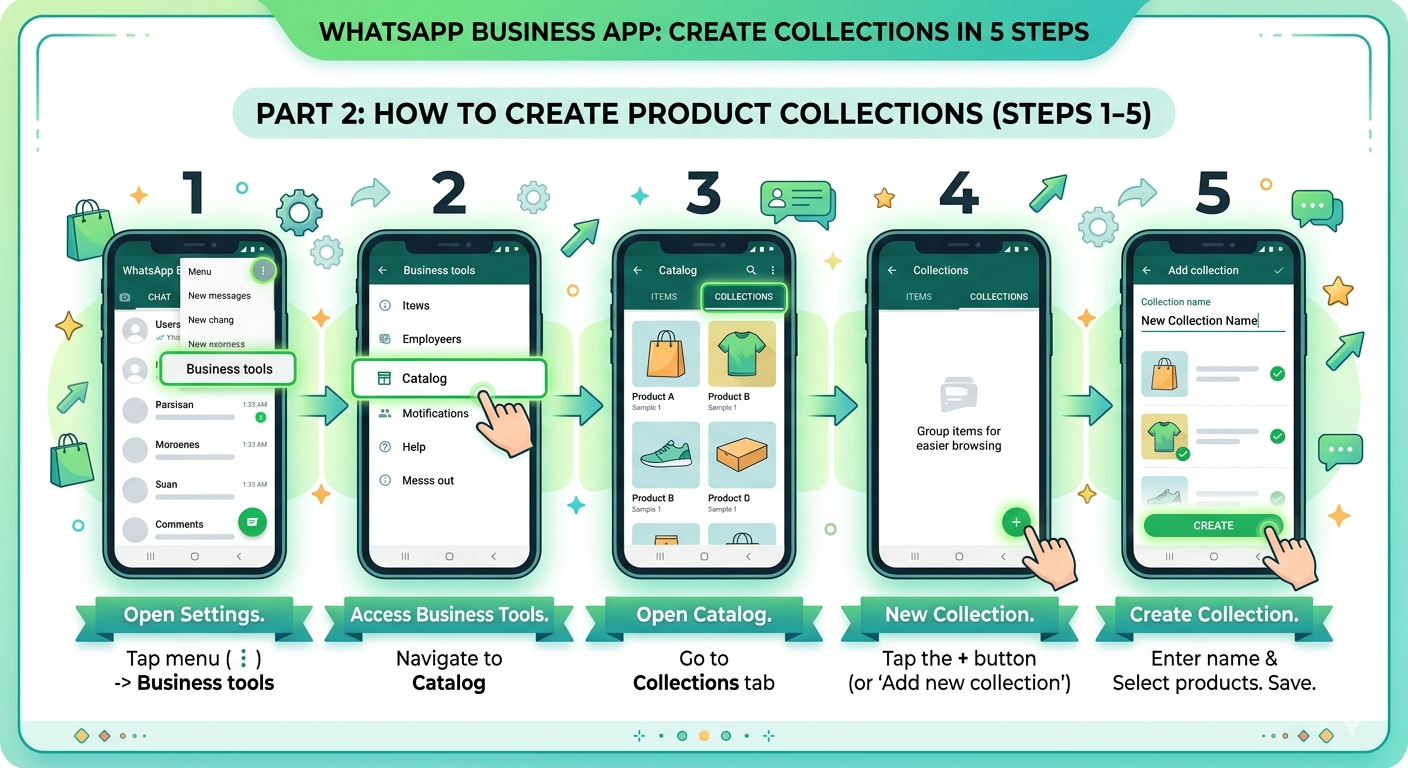
Creating a collection on the Business App
The straightforward path if you're on the standard app, not the API.
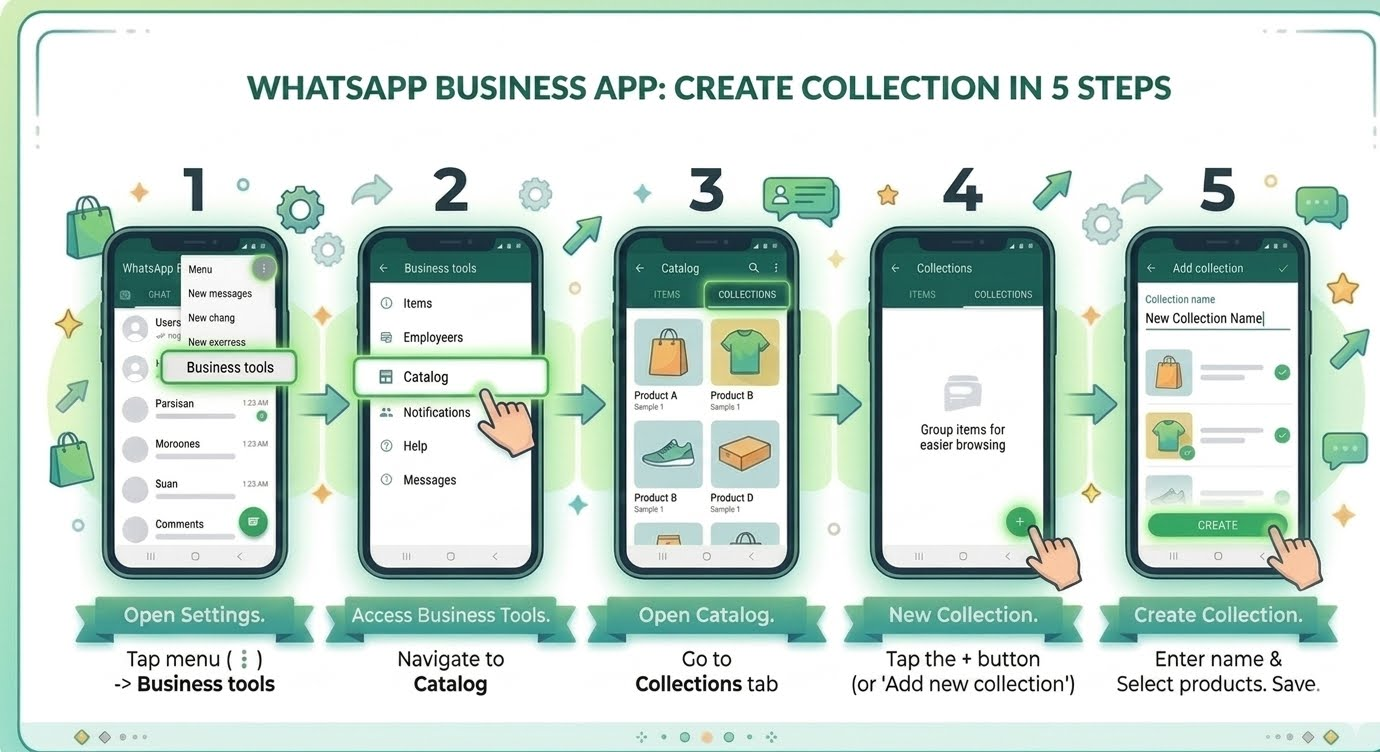
- Open the catalog. Three-dot menu (or Settings on iOS) > Business Tools > Catalog.
- Go to Collections. Inside the catalog, look for the Collections tab or option. On most Android devices it's a tab above the product grid, on iOS it may be under a menu icon.
- Tap "Add Collection" and name it clearly. "Summer Dresses 2025" beats "Collection 1". The name is customer-facing, so treat it like a shelf label. You can add a short description, worth doing if the name alone doesn't say what's inside or if you want to call out "free shipping on all items in this collection".
- Add products. Tap Next, select from your full catalog list. Overlap across collections is fine.
- Save and wait for review. Tap Done. New collections go through a review that typically takes up to 24 hours, checking the content against commerce policy before it's visible to customers.
If a collection is rejected you can appeal through the same account. Rejections usually mean products in a restricted category, or a collection name that's misleading relative to what's inside.
Creating collections in Meta Commerce Manager (API)
On the API your catalog lives in Meta Commerce Manager, not inside the WhatsApp app. Same concept, different interface.
- Log in at business.facebook.com, go to Commerce Manager, and select the catalog connected to your WhatsApp Business API account.
- Go to the Items tab. Make sure products are uploaded and approved first - items pending review or rejected won't show properly inside collections.
- Create a product set, which is the API term for a collection. Go to the Sets tab (or "Manage Product Sets" depending on your Business Manager version) and click Create Set. Name it and either set filter rules or select products manually. Filter-based sets are useful for large catalogs where a collection should automatically include everything tagged with an attribute, like "category: skincare" or "price < 999".
- Product sets sync automatically to your connected WhatsApp catalog. The sync isn't always instant, so give it time before checking the catalog preview.
- If you haven't already, assign the catalog to the WhatsApp Business API account: Business Settings > Data Sources > Catalogs > select your catalog > Assign Partners > your WhatsApp Business API phone number.
Sharing a collection in chat
This is where most guides stop at setup and miss the useful part.
Collections aren't only passive browse structures. You can send a specific one directly in a conversation. When a customer asks about a product category, you share the relevant collection as a message and they see a browsable card inside the chat. On the Business App: in any chat, tap the attachment icon > Catalog > Collections > select and send. On the API: send a multi-product message that references a product set. That's how automation works - a bot captures intent ("I'm looking for protein supplements"), the flow triggers a multi-product message from the "Protein" collection, and the customer sees a scrollable product card without leaving the conversation.
This gets underused badly, usually because teams set up automation for FAQs and never wire product discovery into the same flow. A customer asks for a recommendation, the bot replies with text, the catalog never comes into it. The collection share is three lines of API logic, it just doesn't happen because nobody connects it.
Structuring collections that convert
Setup is the easy part. Naming and structure is where most brands leave money on the table.
Organise by customer intent, not your internal taxonomy. Your warehouse organises by SKU. Your catalog should organise by what the customer is trying to do. Reorganise a haircare catalog from "Shampoos / Conditioners / Serums" to "Dry & Damaged Hair / Oily Scalp / Hair Fall / Growth & Thickness" - same products, different buckets - and the "which one is for me?" questions drop, because the collection matches the question already in the customer's head. Someone messages you with a problem, you send the collection built around that problem.
Keep the count manageable. More collections don't mean more discoverability. Twenty collections create decision fatigue as easily as a flat list. Aim for 4 to 10 depending on catalog size, and if you have under 50 products, 4 to 6 is plenty.
Rotate campaign collections without touching permanent ones. Permanent collections are evergreen categories. Campaign collections (Sale, New Arrivals, Festive Picks, Back in Stock) get created, activated and retired with the campaign. A "Sale" collection left live for months after the last discount ended means customers click in expecting deals and find full-price items. Set a calendar reminder to delete or archive campaign collections when the campaign ends.
Match names to how customers speak. If they say "office wear", name it "Office Wear", not "Workwear & Formals". The label should sound like a buyer, not a category manager.
What changes at scale on the API
For larger catalogs or more complex operations, the manual app workflow breaks down fast. The API gives you a few things that matter.
Automated product set rules. Instead of curating each collection by hand, define filter logic so any product tagged with an attribute joins the right collection automatically. A new "Monsoon Essentials" product just needs the right tag at upload.
Real-time catalog sync from your store. On Shopify or WooCommerce, sync the catalog to Meta Commerce Manager and stock updates, price changes and new listings flow through on their own. The WhatsApp catalog reflects live inventory with nobody managing it.
Multi-product messages in automation flows. Trigger collection shares from inside chatbot flows - the customer picks "browse skincare" from a button menu and the next message is a scrollable card from the skincare collection. This is the bridge between catalog infrastructure and actual conversational commerce.
Catalog-level analytics. Through the API and Business Manager you can see which products get the most interactions from catalog views, which tells you which collection structures are working and which customers ignore.
What still breaks
Collections don't support in-chat checkout everywhere. WhatsApp Pay and in-chat purchase flows are available in limited markets. In most geographies, including large parts of Southeast Asia and Africa, customers browse the collection and then need a payment link or website to complete the purchase. Plan that handoff explicitly.
Review rejections can be opaque. If a collection gets flagged, the message isn't always specific enough to know why. Businesses in borderline categories sometimes get rejected on items that look compliant. Appeals work but add time.
The Business App has practical limits. Managing a large catalog by hand gets unwieldy. If you're running hundreds of SKUs across several collections, the API-connected Commerce Manager workflow is more sustainable, with bulk uploads via data feed and filter-based rules that don't need manual curation every time inventory changes.
Customers on older WhatsApp versions may not see collections. Navigation depends on the app version the customer runs. Most people on reasonably recent versions (last two years) are fine. Rarely a significant issue, but worth knowing in markets with lower update rates.
Collections work when they're set up as a discovery tool, not a filing system. A well-run setup looks like permanent intent-based collections for browse, campaign collections built and retired with each cycle, and automation flows that surface the right collection based on what the customer asked - someone who messages "I need something for gifting" sees a gift-set collection in the chat within seconds, no human involved.
If you're starting from zero, get three or four core collections live first, keep the names simple, and link them into one basic chatbot flow so they get used in real conversations. That alone changes what WhatsApp feels like as a sales channel. For how a different vertical uses the same bot-plus-catalog pattern, real estate teams qualifying leads on WhatsApp is a useful comparison.
Questions people ask
What is a WhatsApp collection?
A named grouping of products inside your WhatsApp catalog. It works like a category page in your storefront, letting customers browse a curated set instead of scrolling the whole catalog. Collections appear in the app's catalog view and can be sent directly in conversations as browsable product cards.
How many collections can I create?
WhatsApp doesn't publish a hard cap, but practical limits apply. Too many fragment the catalog and make navigation harder. Most businesses with catalogs under 300 products run well with 5 to 8. Larger catalogs on the API can create more with filter-based product sets in Commerce Manager.
How long does review take?
Typically within 24 hours. The review checks that the content complies with WhatsApp's commerce policy. Rejections happen if products are in restricted categories or the name doesn't match what's inside.
Can one product be in multiple collections?
Yes, as many as are relevant. A moisturiser can be in "Oily Skin" and "Bestsellers" at the same time.
How do I share a specific collection in a conversation?
On the app: open a chat, tap the attachment icon, select Catalog, go to Collections, and send. On the API: send a multi-product message referencing a product set, which can be triggered from a chatbot flow based on customer intent.
Should I set up collections before launching the catalog?
It's fine to launch with products listed and add collections once you see how customers browse. For very small catalogs (under 20 products) collections may not add much. Above 30, they're worth setting up before customers start asking "which one is right for me".
When should I keep collection delivery manual?
When the question is genuinely complex or ambiguous. "I have sensitive skin and I'm also pregnant, what's safe?" needs a human with knowledge, not a product card. Automate for clear-intent queries, keep humans on the nuanced, high-stakes ones where the wrong recommendation causes a real problem.
Can I use collections on the free Business App?
Yes, on both the app and the API. The app version is manual product selection and management. The API version supports filter-based rules, automated catalog sync from your store, and multi-product messages in chatbot flows. For most small sellers the app is enough to start.
Read more

How Ecommerce Brands Sell Through ChatGPT and Claude
AI assistants like ChatGPT and Claude are becoming how people find and buy products. How an e-commerce brand gets its catalog inside those platforms, what MCP is, and what it takes to close a sale in the conversation itself.

3 Easy Ways to Add WhatsApp to Your Website for Free
Most visitors leave a website without saying anything, because forms and email feel like effort. Three free ways to put a WhatsApp button on any site, no developer and no API needed, and which one to start with.

WhatsApp Shopping: How to Sell Through Chat in 2026
What WhatsApp shopping actually is, how a customer goes from question to payment inside one thread, what a shopping bot does at volume, when you need the Shop API, and the mistakes that get numbers blocked.